Xamrin Android Push Notification using Firebase Cloud Messaging
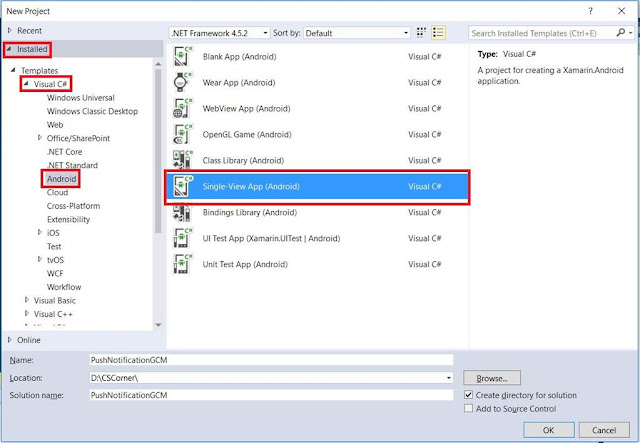
- Create a New Project. Select Single-View App (Android) under Installed > Visual > C# >Android
- Open AndroidManifest.xml file under your Android project's Properties

- Copy value of package attribute in manifest tag

- Open your browser and goto https://console.firebase.google.com . Sign-in with your Google acoount create a new one

- Click on Add Project. Choose a project name. Here, the name is PushNotificationGCM

- Click on Add Firebase to your Android App

- Paste the package name copied in Step 3 and click Register App

- Click on Download google-services.json and click continue

- Copy google-services.json file into Android project

- Include google-services.json file into Project's Solution by clicking View All Files in Solution Explorer tab, Right-click google-services.json file and click Include In Project

- Right-click Android project and click Manage Nuget Packages

- Click on Browse tab, search for Xamarin.GooglePlayServices.Base and install the package

- Search for another Nuget package Xamarin.Firebase.Messaging and install the package

- Right-click project to Build Solution. Now Close and re-open Visual studio
- Right-click on google-services.json file and click Properties

- Select Build Action to be GoogleServiceJson

- Open AndroidManifest.xml under Android project's Properties

- Right-click Android project and click Properties. Goto Android Manifest tag and check INTERNET checkbox under Required permissions

- Add a new C# Code File. Name it according to your project. Here it's name is DemoFirebaseIdServices.cs . Include the following code

- Build the Solution and Run the project in debug mode on Android device.Make sure that the device is connected to Internet and Google Play Services are installed on device

- Once the project is running watch the Output Window in Visual Studio where refresh token will appear. Copy the token.

- Open your Firebase project in browser that you created in Step 5. Click onNotification menu in Navigation bar on the right and click on Send Your First Message

- On the Compose message page, add message text, add message label, select Single device under Target section and add registration token copied in Step 22 and click Send Message

- The notification will then be sent to Single device and the next page shows status of sent Notification Message

- Completed status of notification message shows that the notification has successfully reached the target device







This information is impressive; I am inspired with your post writing style & how continuously you describe this topic. After reading your post, thanks for taking the time to discuss this, I feel happy about it and I love learning more about cloud messaging. oracle fusion scm
ReplyDeleteen son çıkan perde modelleri
ReplyDeleteminecraft premium
lisans satın al
yurtdışı kargo
uc satın al
en son çıkan perde modelleri
nft nasıl alınır
özel ambulans
Good content. You write beautiful things.
ReplyDeletekorsan taksi
mrbahis
sportsbet
hacklink
sportsbet
vbet
vbet
hacklink
mrbahis
Good text Write good content success. Thank you
ReplyDeletetipobet
betmatik
kralbet
mobil ödeme bahis
bonus veren siteler
betpark
poker siteleri
kibris bahis siteleri
sultangazi
ReplyDeleteordu
mardin
bodrum
sincan
İEHRB
maraş
ReplyDeletebursa
tokat
uşak
samsun
DJR2
salt likit
ReplyDeletesalt likit
dr mood likit
big boss likit
dl likit
dark likit
C33B
https://saglamproxy.com
ReplyDeletemetin2 proxy
proxy satın al
knight online proxy
mobil proxy satın al
JKNXVF
Hi nice reading your posst
ReplyDeleteACB2EA22
ReplyDeleteUşak
Gümüşhane
Aydın
Bilecik
Zonguldak
Şırnak
Aksaray
Kütahya
Tokat
DB772204
ReplyDeleteSeyhan
Hendek
Dalaman
Dikili
Söke
Tire
Aksu
Gürcistan
Viranşehir
This app looks promising, and I really enjoyed reading your article because the information was presented in a clear and useful way. I always prefer articles that discuss an application from a practical user perspective instead of simply listing features. Your explanation helped me understand why people may be interested in Xuper TV Descargar. I particularly appreciate apps with simple navigation because I do not want to spend too much time figuring out where everything is located. Xuper TV APK seems to offer an interesting entertainment experience, and I would like to explore it more. Thanks for writing an informative article that made the topic easier to understand.
ReplyDeleteApp articles that actually explain the user experience are always worth reading, and I think your post did a good job of doing that. I found the information about Freecine APK particularly interesting because I had seen the name before but did not know much about the application. The possibility of browsing different entertainment content from one place sounds convenient for casual users. I also like applications that keep their menus simple because complicated layouts can make the viewing experience frustrating. Your article gave me a useful introduction and helped me understand some of the features more clearly. Thanks for putting together such an informative post about Freecine APK.
ReplyDeleteApp information can sometimes be difficult to understand when articles only focus on technical details, so I really appreciated the simple explanation in your post. Your article was helpful and gave me a clearer idea about what Xuper Hydra APK is designed to offer. From my experience, I prefer applications that are easy to navigate and do not require a lot of effort just to find basic features. This app caught my attention because it seems focused on providing a convenient entertainment experience. I am still exploring its different options, but so far I have found the overall interface reasonably straightforward. Thanks for sharing such useful information.
ReplyDelete